Meetings & minutes / Whiteboard
From a whiteboard photo
to meeting minutes,
with decisions and pending items apart.
Just attach the board image and write what you want to know. The agenda, decisions and pending items come back separated, with owners and deadlines in a table.
Try it in Prompt Flow StudioAttached image
We held a meeting with the warehouse team of a fictional logistics company. The attached image is the whiteboard from that meeting.
What are the agenda items, decisions and pending items? If owners and deadlines are written, please include them too. For any characters you cannot read, write "unreadable."
What came back
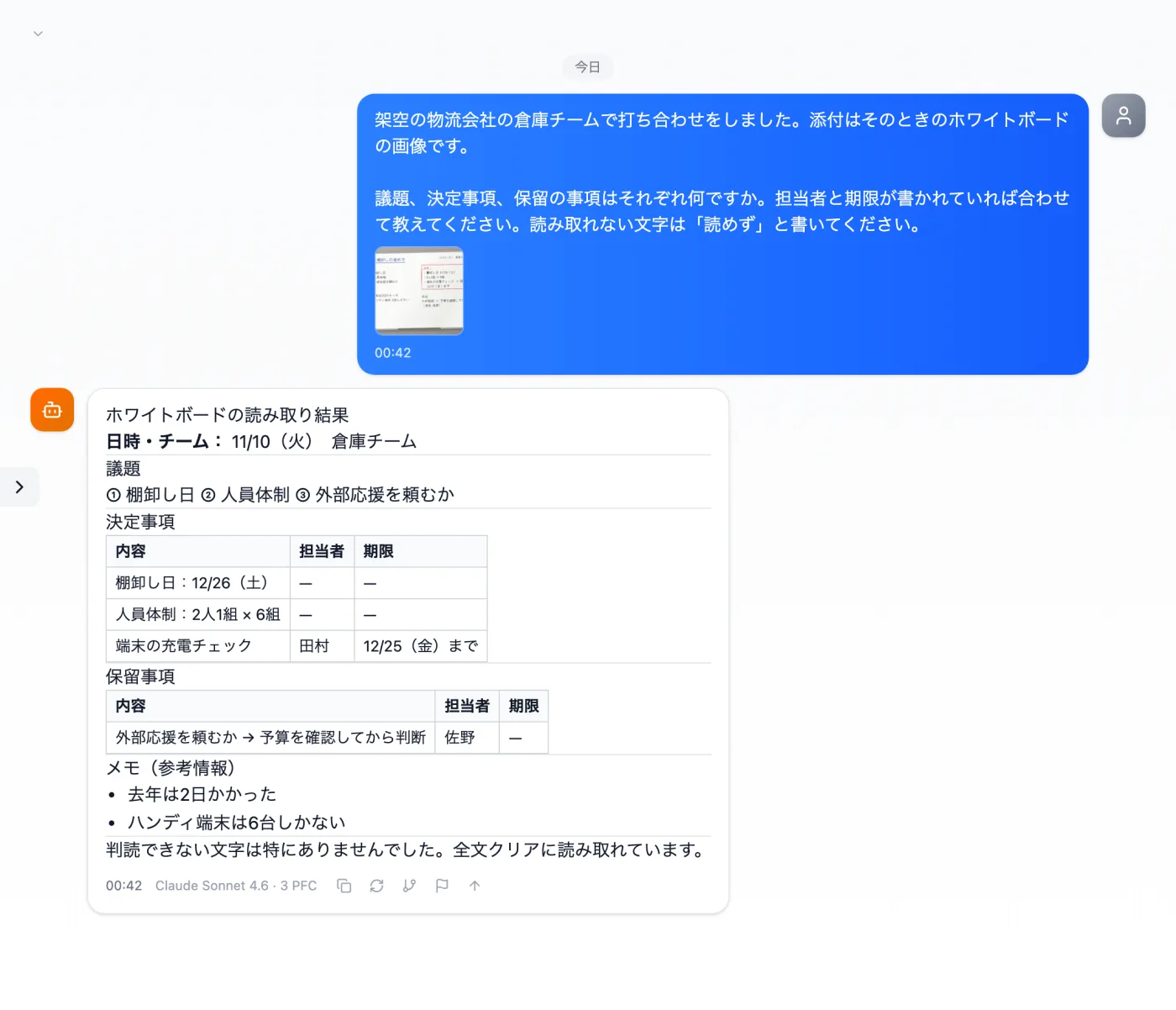
Actual screen (consulting with an attached image, Claude Sonnet 4.6) (an example of use)View larger image
Just 3 steps
Attach the image
Attach the image with the paperclip in the input box.
Write what you want to know
Write the items you want separated, such as agenda, decisions and pending items.
Compare with the image
Check the characters and numbers it read against the original image.
From a board photo to a draft of the minutes
- At the end of the meeting, take a photo that captures the whole whiteboard. For parts with small writing, taking one more close-up shot gives you peace of mind.
- Attach the photo with the paperclip in the input box.
- Write the items you want to know in plain sentences. In this example, the request asks for "agenda items, decisions and pending items" and "owners and deadlines."
- Also say how to handle characters it cannot read. In this example, it is asked to write "unreadable."
- Compare what came back with the original image. Check owners' names and deadline numbers before copying them into the minutes.
Tips for taking the photo
- Shift your position slightly so that glare from the lights does not wash out any part.
- If old writing is still on the board, add a note to the request saying which part is from today.
- Shooting at an angle makes the text at the edges smaller, so shoot from the front as much as possible.
- Take the photo when no one is standing in front of the board.
- If no date is written in a corner of the board, write the date you took the photo in the request.
- If you photographed several boards, attach them one at a time and note in the request whether each image is the agenda or the to-do list.
When a whiteboard photo helps
- When you use a meeting room where the board must be wiped right after the meeting
- When you want to reorganize brainstorming ideas by agenda item afterward
- When you want to share the board's content in writing with people who were absent or joined remotely
- When you want to turn a handwritten schedule into a table and share it
- When you want to organize today's decisions as additions to the previous minutes
Tips for asking
- List the items you want back in table form (owner, deadline, status, etc.) in the request.
- For boards with many diagrams connected by arrows, try asking "Please also explain the relationships shown by the arrows in sentences."
- For boards where agenda items are listed as bullet points, ask "Add a heading for each agenda item."
- For boards where opinions are grouped with sticky notes or colors, ask "Name each group and organize by group."
- If pen colors, abbreviations or symbols have meanings, add a note to the request such as "Red means pending, blue means decided" or "→ means handing over ownership."
- If participants' names are written as abbreviations, add the mapping between abbreviations and names to the request.
Questions about working with board images
- Can I use images other than whiteboards the same way?
- You can try the same steps with photos of poster paper covered in sticky notes or handouts. Writing what you want to know in sentences stays the same.
- What if the board is too big to fit in one photo?
- Take it in parts, left and right or top and bottom, attach them one at a time and ask the same question. Then combine what comes back by agenda item.
Other uses work the same way
If you are unsure about the wording, you can also have another AI write it and compare.
For the next meeting, start by photographing the board.
Try it in Prompt Flow Studio